Tide Alert - App Guide
Picking a tide station
Tide Alert has support for several thousands of tide stations managed by NOAA across United States. Here are a few tips to make picking the tide station easier.
Search
If you know the name of tide station you want, the easiest option is to do a quick search by the station name and pick one from the results.
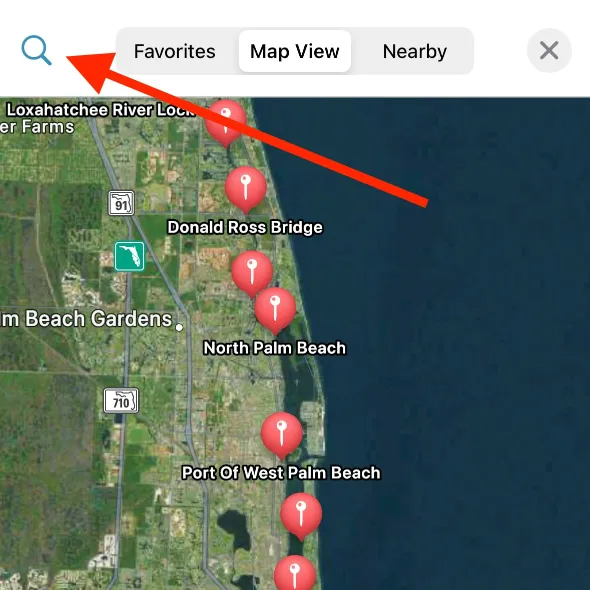
If you do not know the tide station name, there are couple of other ways to find the best tide station.
Nearest Station
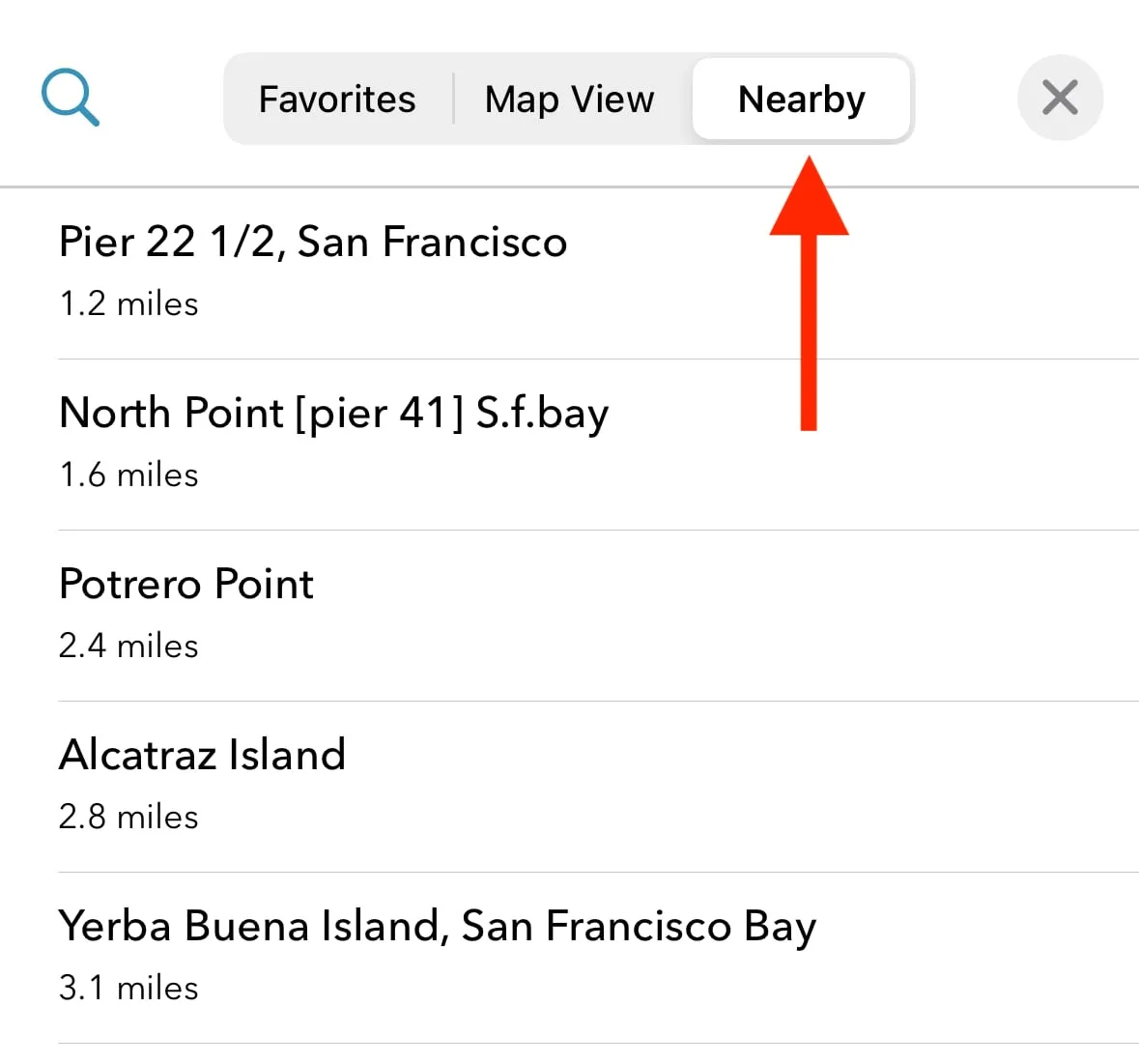
Go to the 'Nearby' tab and you will see all tide stations sorted by their closest distance to your current location. Pick a station that is closest to your location.
Map view
Browse the map to zoom into the area you'll be visiting and you can view all the supported tide stations. Tap on the icon to bring the popup panel and select 'Choose this station'.
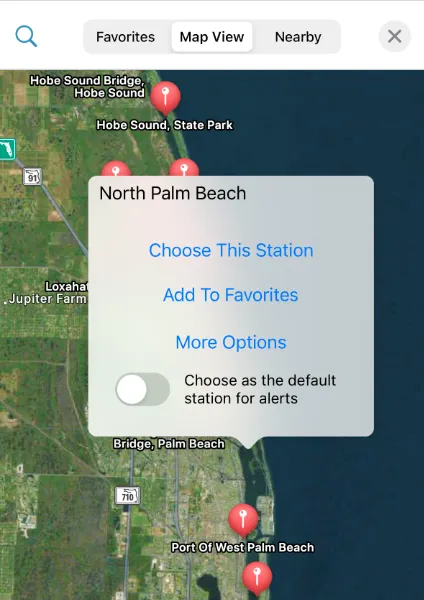
From here, you can add a station as a favorite allowing you to quickly switch between multiple tide stations.
Switching on the toggle 'Choose as the default station for alerts' allows the station to be the used for notification alerts, if enabled from 'Alerts' screen.
Viewing tide table
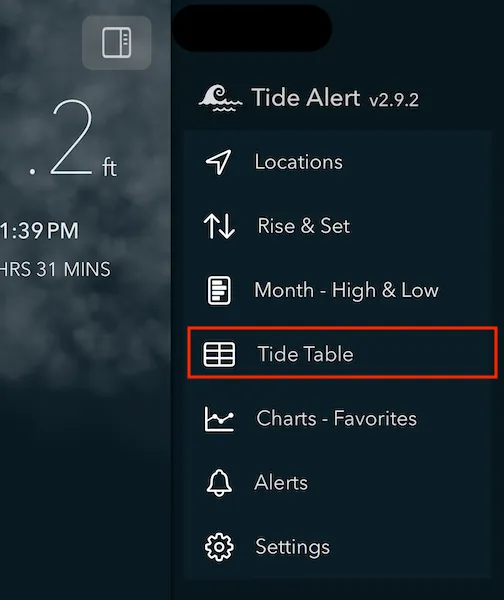
Choose 'Tide Table' from menu to view all the tide events in list format.
Tap the filter button to open the filter options.
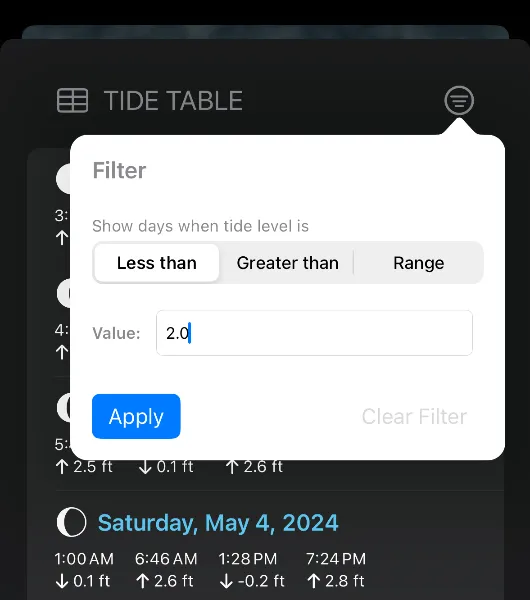
To filter the tide events, enter the tide level in feet in the text field. You can choose between 'Less than' or 'Greater than' or 'Range' filter.
- 'Less than' filter is useful for matching days when low tide is less than given tide level.
- 'Greater than' filter is useful for matching days when high tide is greater than given tide level.
- Range filter is great option to match either High tide or Low tide filter values. Use this when you want to match days when high tide is less than certain value or low tide is greater than certain value.
What is a reference level?
Reference level setting can be turned on from the settings screen.
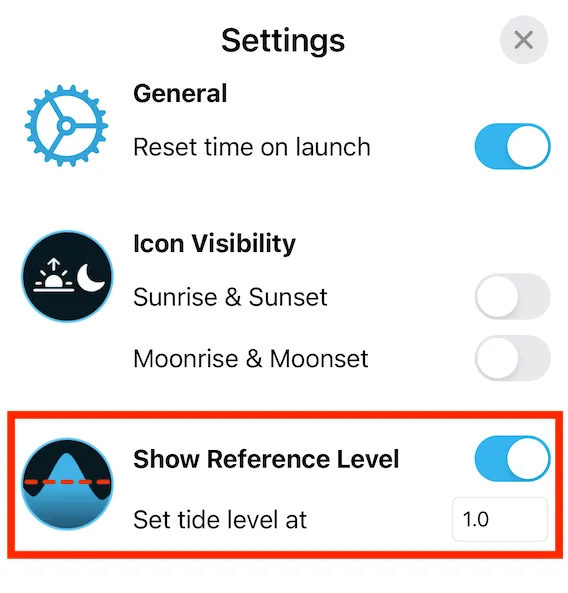
This adds a reference line to your tide chart at the tide level you specify in the settings.
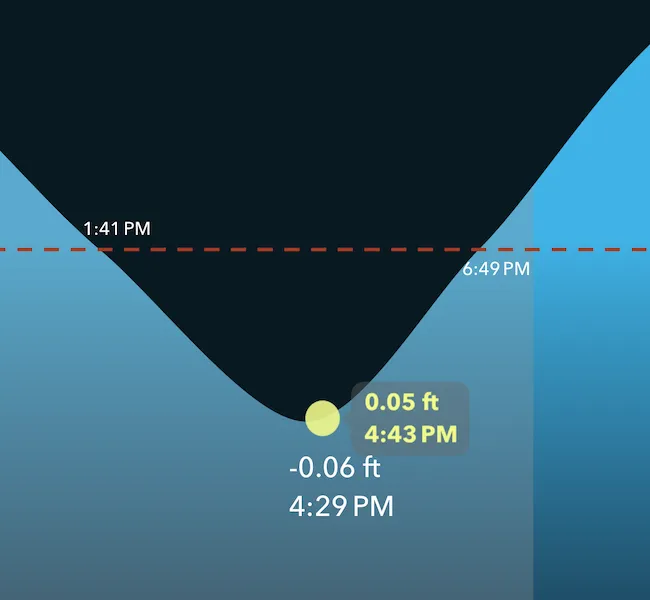
When to use reference line?
Reference level are useful to enable when there are particular tide levels you are watching for each day (for example: You can only visit a certain beach when the tide levels are at certain level or lower or you need to move your boat in or out based on certain tide level each day etc).
The exact times for these events are displayed on the chart at the intersection points with the reference line.
What Datum do you use?
All data reported uses the MLLW datum. You can check this info by tapping on the 'More Options' under each tide station.
Note - We currently do not support changing the datum. Contact support if this is something you want.
Favorites
Adding a station as a favorite has three main benefits.
- Tide data for all your favorite stations will be available even when you're completely offline. Sail away or venture into remote places without having to worry about poor network connections.
- You can quickly switch between multiple favorite stations from the main screen with just a quick tap.
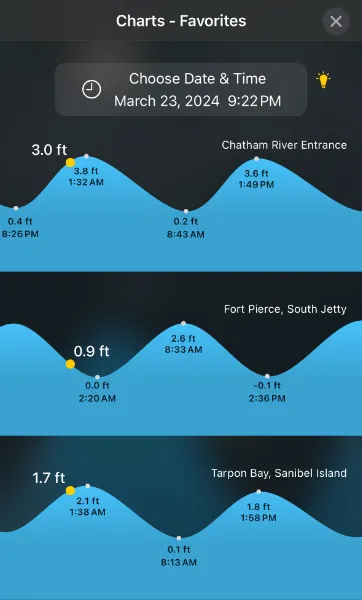
- Tide charts from all your favorite stations can be compared with each other in one screen. Go to the menu and choose 'Charts - Favorites'.
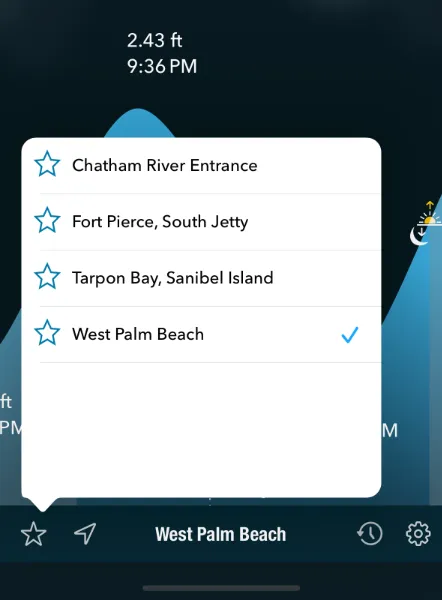
To add a station as a favorite, tap on the station pin from the Map view and you can add a station as a favorite.
Widgets
Tide Alert supports several different home screen and lock screen widgets.
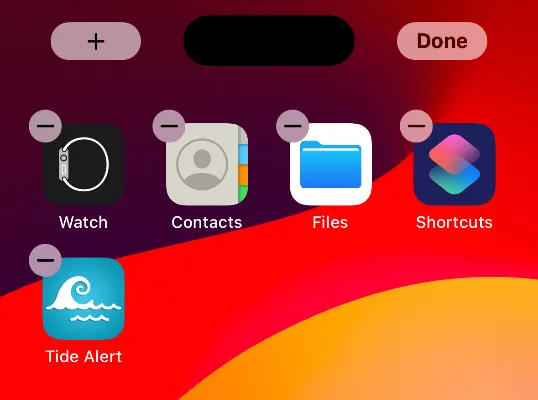
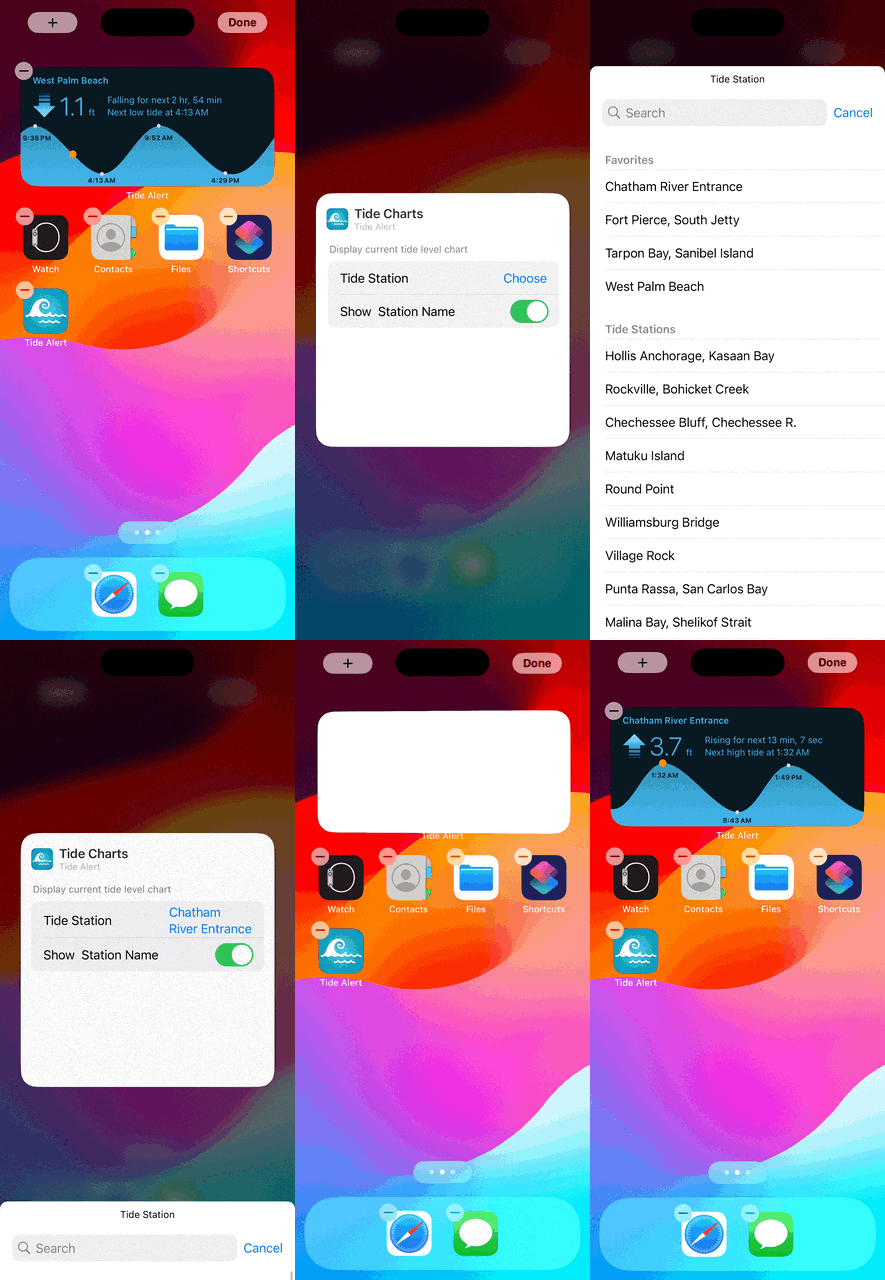
- Long press anywhere on the home screen until you see a + icon on top left of the screen.
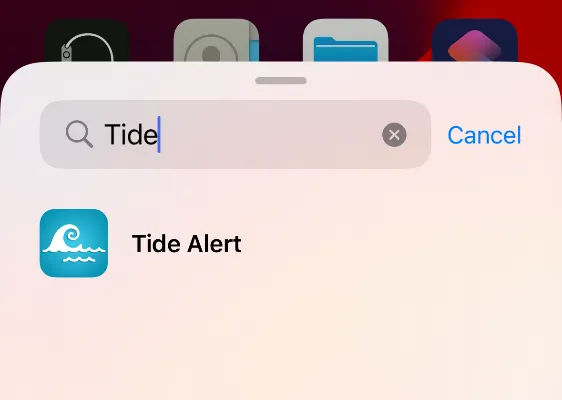
- Tap the + icon and in the widget selection screen, search for 'Tide Alert' and choose it. From the next screen, pick the widget you like to add.
- To configure the widget, tap once more to the 'Edit' screen and tap on 'Choose' to select a tide station.
App Gestures
- Double tap anywhere on the chart to reset time to current time.
- Tap on the Moon image to view the rise, set and other info.
- Use two fingers to pinch over the chart view to zoom in and zoom out.
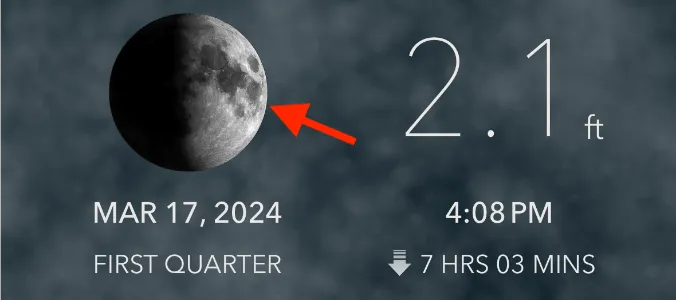
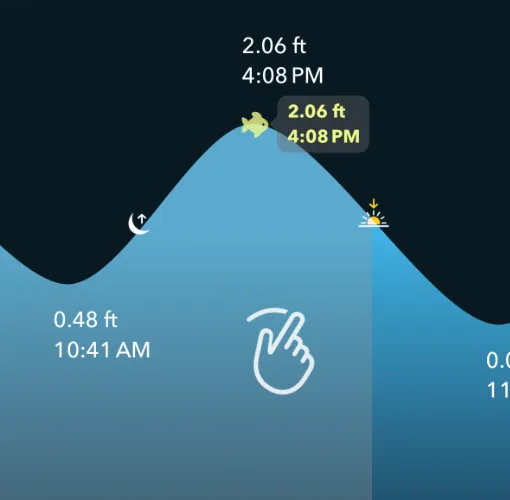
- Use swipe left or swipe right to change date.
- Double tap to reset date and time to current.
Finding the highest and lowest tides of the month
Finding the highest and lowest tide of the month can help immensely in planning your trips in advance.
Simply tap on on the Month - High and Low option in the menu.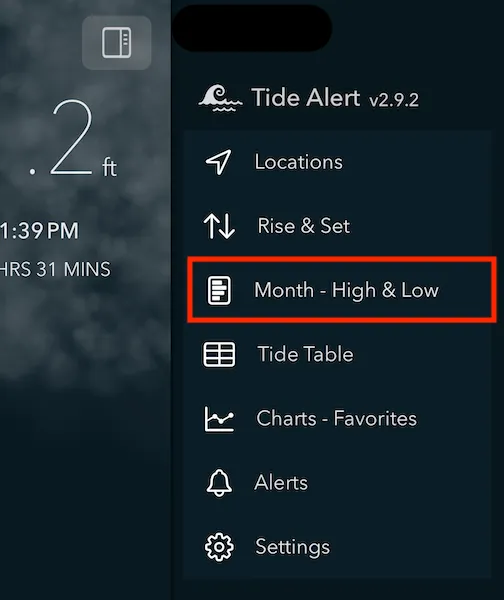
The chart below represents the highest and lowest tide of each day as a bar. The blue bar represents the high tide and the orange bar represents the low tide. The intersection point of these two bars is 0 feet. On days when low tide is above 0 feet, the orange bar extends to the right side.
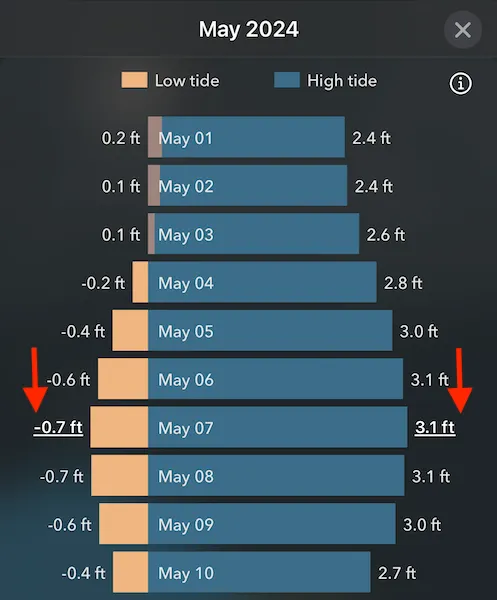
Note the highest tide of the month and the lowest tide of the month are highlighted with a underline.
You can also tap on the bar to switch to that date.
Alerts
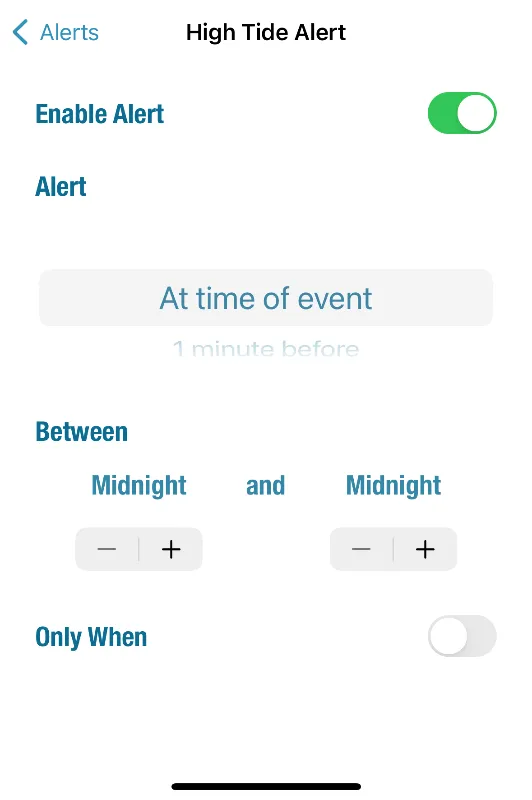
Tide Alert enables setting alerts for a) High tide events b) Low tide events and c) Custom tide events
First pick the tide station you want the alerts from the Alerts screen and then configure the events by turning on the 'Enable Alert' toggle.
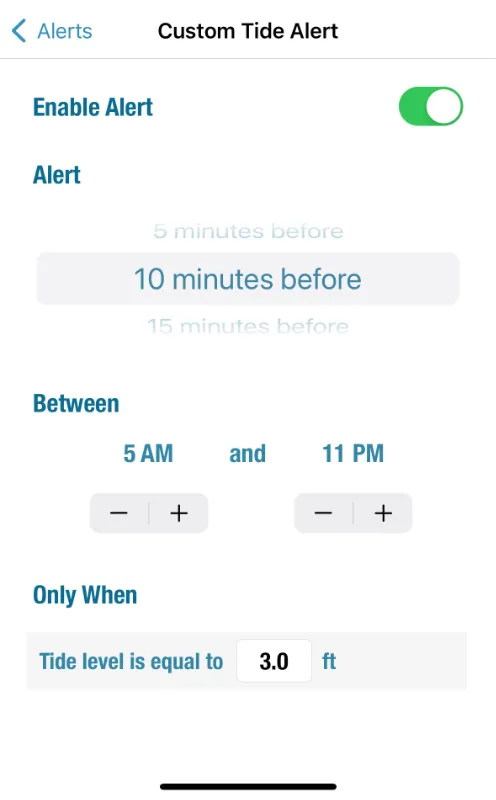
Tide alert also supports custom alerts giving you maximum flexibility on when you want the alerts. You can setup a specific tide level when you need to be alerted at.
My alerts are configured but I don't get any alert notifications.
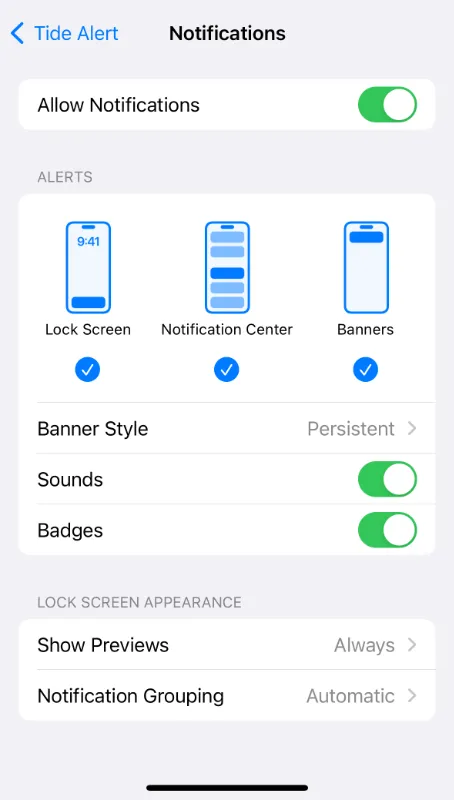
Please make sure the notification settings for tidealert app is turned on in system settings by following these instructions.
- Tap on iPhone settings.
- In the search, type Tide Alert and select the Tide Alert app that shows up in the result.
- Tap on Notifications and make sure you have the notification settings turned on here.
Your notifications settings should look like the image below.
Using Siri
At times, using voice can be quite helpful to access the tide info, especially when you can't use your hands (for eg, you are kayaking or your hands are occuppied with something). This is why we have added the ability for you to invoke siri to ask for tides from tide alert.
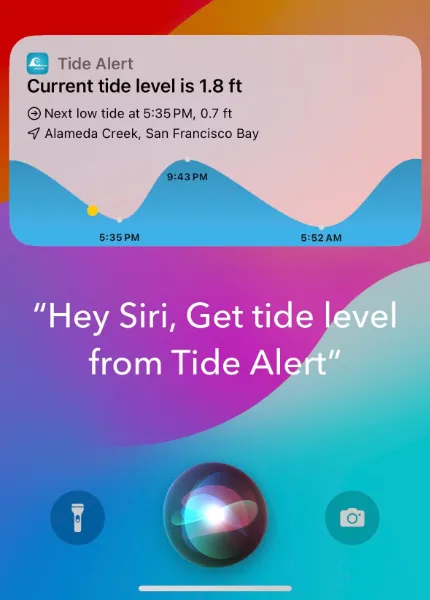
Here are few phrases you can speak with 'Hey Siri':
- Get tide level from Tide Alert
- Get current tide level using Tide alert
- Use Tide Alert to tell what time is low tide
- Use Tide Alert to tell what time is next high tide
- Use Tide Alert to tell what is the current tide level
- Find next high tide using Tide Alert
- Find next low tide using Tide Alert
- Find what is the current tide level using Tide Alert
In all these instances, the currently selected tide station in the app is used.
Device settingsFor best experience, use the following settings under 'Siri & Search' in your device settings.
- Enable: Listen for "Siri"
- Enable: Allow Siri When Locked
Apple Watch
Add Tide Alert complication to your Apple Watch face. Choose from a wide number of widget options.
Subscriptions
How do I check or cancel my current subscription?
Please follow the instructions below.
- Open the App Store app on your device.
- Tap on your profile icon on top right corner of the screen.
- Tap on Subscriptions.
If you have previously purchased a subscription, you should see Tide Alert listed under the subscriptions. You can manage all your subscriptions from this screen.
If you do not see Tide Alert listed here, then you don't have a subscription and you will not be charged for it.
I have already purchased a subscription, but the app continues to show the purchase screen.
This can happen when you switch or upgrade your device. In that case, simply choose the 'Restore Purchase' option from the payment screen and your subscription should get restored back to normal.
In case you are unable to get it to work and you are able to confirm you already have a valid subscription by following the steps above, then please contact support by tapping on the 'Contact Support' link from the payment screen.
Do I need a separate subscription for iPad or Mac if I purchase a subscription for my iPhone?
No, you do not need a separate subscription. Your single subscription will cover all your Apple devices including iPhone, iPad, Apple Watch and Mac.
Why do you charge for a subscription?
There are ongoing costs for supporting the cost of development, maintenance and support of the app and for running the servers. The subscription helps to make these efforts sustainable into the future.
Do you store any of my billing or my credit card info?
We do not. Apple handles all of the billing and subscription transactions and we do not see any of your credit card data.
Wind and Temperature Charts
Tide Alert provides detailed wind and temperature charts to help you plan your activities. These interactive charts show hourly data for wind speeds, gust speeds, air temperature, and water temperature at your selected tide station.
How This Helps Water Activities
The wind and temperature data is essential for planning safe and enjoyable water activities:
- Boaters: Monitor wind speeds and direction for safe navigation and anchoring decisions. High wind speeds or sudden direction changes can create dangerous conditions.
- Kayakers: Plan trips based on wind conditions to avoid being pushed off course or facing difficult paddle conditions against strong winds.
- Surfers: Use wind direction and speed data to predict wave conditions and identify optimal surfing windows when offshore winds create clean wave faces.
- Swimmers: Check water temperature for comfort and safety, and monitor air temperature for post-swim conditions to prevent hypothermia.
Forecast Coverage
Important: Wind and temperature forecasts are available for up to 10 days from the current date. This allows you to plan multi-day trips and activities well in advance.
If data is not available for a specific date or location, the charts will display a "No data available" message. Some remote locations may have limited weather data coverage. The app automatically loads fresh data when you change dates or stations, ensuring you always have the most current weather information available.
Accessing Wind and Temperature Charts
To view the wind and temperature charts, navigate to your selected tide station and look for the weather or chart section. The charts display comprehensive meteorological data for the current day.
Wind and Gust Speed Chart
The wind chart displays two key data series:
- Wind Speed: Shows the sustained wind speed with directional arrows indicating wind direction
- Gust Speed: Displays peak wind gust speeds throughout the day
Wind speeds are shown in your preferred units (mph, knots, or km/h) as configured in your settings. Each data point includes the exact wind speed value and directional indicators to help you understand wind patterns.
Air and Water Temperature Chart
The temperature chart shows two temperature readings:
- Air Temperature: Hourly air temperature readings displayed in yellow
- Water Temperature: Ocean water temperature data displayed in blue
Temperature values are displayed in either Celsius or Fahrenheit based on your app settings. This information is crucial for planning water activities and understanding local weather conditions.
Navigating the Charts
Use the left and right arrow buttons to navigate between different dates. The charts automatically scroll to show data around the current time, making it easy to see immediate conditions and upcoming forecasts.
On iOS 17 and later, you can scroll horizontally through the charts to view data for different hours of the day. The charts display hourly intervals with clear time markers along the bottom axis.
Important Disclaimer
Use at your own risk. Weather and marine data provided by this app is for informational purposes only and is not guaranteed to be accurate or complete. Conditions can change rapidly and unexpectedly. Always use multiple sources of information and exercise proper judgment when making decisions about water activities. Rivolu LLC cannot be held responsible for any decisions made based on this data or any consequences resulting from the use of this app.
Swell Chart
The Swell Chart in Tide Alert delivers detailed ocean wave data to help you make informed decisions about water activities. This powerful visualization combines swell height, period, and direction data in an easy-to-read format that's essential for anyone venturing onto the water.
Why Swell Data Matters
Understanding swell conditions can mean the difference between an epic day on the water and a dangerous situation:
- Surfers: Dial in perfect sessions by tracking swell height and period. Quality waves come from larger swells with longer periods (8+ seconds), which create cleaner, more organized breaks with better rides.
- Boaters: Navigate safely by monitoring swell direction and size. Large swells from certain directions can create hazardous bar crossings and rough seas, while smaller swells mean smoother sailing.
- Kayakers: Launch with confidence by checking current conditions. Sea kayakers especially need to understand swell patterns when crossing channels or paddling in exposed waters.
- Swimmers: Stay safe in open water by knowing what wave conditions to expect. Large swells can create powerful currents and dangerous shore breaks.
What the Chart Shows
The swell chart presents three critical pieces of information in one view:
- Swell Height: The orange line traces wave size throughout the day, with precise measurements shown in your preferred units (feet or meters). Directional arrows reveal where swells originate.
- Swell Period: Cyan bars display the seconds between wave crests. This is crucial—longer periods (10+ seconds) mean more powerful, organized waves, while shorter periods indicate choppy, wind-driven seas.
- Wave Direction: Compass arrows on each data point show the direction swells are traveling from, helping you understand how they'll interact with your local coastline and surf breaks.
Getting Around
Navigate between dates using the left and right arrows to see how swell conditions change over time. The chart automatically centers on the current hour, so you can quickly see what's happening right now.
On newer devices (iOS 17+), scroll horizontally to explore different times of day. This is perfect for timing your session to catch the best conditions or avoid rough periods.
When Data Isn't Available
Remote locations or areas far from monitoring buoys may show "No data available." The app constantly updates with fresh information, so check back as conditions and data coverage can change.
Making Smart Decisions
For surfers, look for the sweet spot of:
- Wave heights that match your skill level (2-4ft for beginners, 6ft+ for experienced)
- Periods of 8-12+ seconds for clean, powerful waves
- Consistent swell direction that works with your local break
For boaters and other activities, smaller wave heights (under 3ft) and shorter periods typically mean calmer, more manageable conditions. Pay special attention to swell direction—swells hitting your area head-on can create much rougher conditions than those hitting at an angle.
Important Disclaimer
Use at your own risk. Weather and marine data provided by this app is for informational purposes only and is not guaranteed to be accurate or complete. Conditions can change rapidly and unexpectedly. Always use multiple sources of information and exercise proper judgment when making decisions about water activities. Rivolu LLC cannot be held responsible for any decisions made based on this data or any consequences resulting from the use of this app.